
Supermarket Simulator Beginner Guide: Start Strong
Use this Supermarket Simulator beginner guide to manage stock, set prices, hire staff, and expand without draining the cash you need to keep shelves full.

Get Your Store Ready Before Opening
A busy checkout means little if you cannot afford tomorrow’s stock. This Supermarket Simulator beginner guide helps you build a store that can fund its own growth. Start with manageable inventory, carefully set prices, and enough cash left over to replace what sells.
1. Keep restocking money separate from upgrade money
Buying a product license is only part of the expense of adding new goods. Budget for the inventory and any shelves, fridges, or freezers those products need before committing.
Keep enough money available to replenish your existing range after the purchase. If a license and its equipment would leave you unable to reorder, postpone that upgrade.
Order goods through the in-game computer, unpack them, and place them in the appropriate displays. Start with a range you can comfortably organize while also handling checkout.
2. Make the layout easy to work in
Place displays with your daily routine in mind: moving stock onto shelves, checking product quantities, and returning to the register. Keep aisles and your route to storage clear.
Group products consistently so you can spot gaps without searching the entire store. Give items that repeatedly sell out more display space rather than assigning every product the same amount.
If the computer menus feel cramped, enable Readability Mode through Settings or use the Layout button on the Market Computer UI. Individual panels can use different layouts, so enlarge the screens you find hardest to read.
Official page: Supermarket Simulator (supermarketsimulator.com)
Manage Inventory and Pricing Together

3. Check existing stock before placing another order
Inspect both your displays and stored goods before buying more. Use the product screen’s stock information alongside a walk through the store to identify what actually needs replenishing.
Prioritize products that are running low. Avoid tying up your available cash in extra boxes of goods that are already sitting in storage.
Local markets offer another way to purchase inventory and look for deals. Compare those purchases with ordering through the computer, including delivery fees. Plan shopping trips around the work you still need to cover inside the store.
4. Review market prices instead of leaving old prices untouched
Product costs and market prices change. Revisit your selling prices as part of your ordering routine so you can assess the difference between what inventory costs and what you charge.
Use the current market price as a starting point, then make small adjustments and watch customer responses. Avoid applying a fixed extra amount to every product regardless of its price.
The Pricing App includes Bulk Pricing, which lets you select multiple products and adjust their prices or discounts together. Percentage preset buttons also speed up changes relative to the current market price.
After a bulk adjustment, review the affected products. Use the feature to reduce repetitive menu work while keeping control over individual prices.
Build a Reliable Checkout Routine

5. Get comfortable taking both payment types
At checkout, scan the customer’s items and complete either the cash or credit card payment.
For cash purchases, check the amount owed and return the correct change. For card purchases, match the payment amount to the transaction total. Accuracy deserves your attention even when customers are waiting.
Before hiring help, notice which task repeatedly pulls you away from another. If serving customers leaves shelves empty, that tells you where an employee could free up your time. If you are constantly unpacking boxes, review your ordering and display space alongside your staffing needs.
Hire Employees With Their Ongoing Costs in Mind
The Hiring tab has changed substantially, so use its current information when planning your workforce:

- September 28, 2026 — Patch 1.7.0: Introduced employee leveling, wage progression, and the redesigned Boost system.
- October 27, 2026 — Patch 1.7.3: Added the Online Order Courier, with support for up to two couriers as your store reaches higher levels.
6. Choose help for the task consuming your attention
Inspect the requirements, level, wage, and Boost status shown in the Hiring tab before taking on another employee.
Hire a cashier when you need time away from the register to manage stock and the store. Consider restocking help when replenishing displays is taking over your routine.
The Hiring tab also includes an employee reset option that returns employees to their idle positions. Customer Helper and Janitor roles have Work Order toggles; review those controls when assigning their duties.
7. Treat Boosts as an ongoing expense
Employee Boosts remain active until you change their level. Each Boost level has a fixed daily cost, with charges based on how much in-game time the employee actually spends boosted.
Adjust the Boost bar in the Hiring tab and inspect the displayed wage cost before leaving it active. Increase Boosts to address a specific workload, then reassess them when that workload changes.
Keep payroll and Boost spending in your expansion budget alongside new inventory and equipment.
Expand Without Overloading the Store
8. Add product licenses gradually
Unlock a manageable group of products, arrange their displays, and learn their restocking needs before adding another group.
Plan each addition around three purchases: the license, suitable display equipment, and the goods themselves. Leave room in the budget for replenishment after opening.
This also gives you time to organize the store deliberately instead of scattering new products wherever a shelf happens to fit.
9. Buy space with a purpose
Expand when you have a clear use for the additional floor area, such as displays for a planned product range or a layout that gives you more room to work.
Price the whole project before buying the expansion. Include the furniture and inventory needed to put that space to use.
Save cosmetic changes for a budget that can support them. Floors, wall paint, and category signs let you personalize the shop; schedule those purchases around stock and staffing needs.
Keep Extra Tasks Under Control
10. Use the online-order controls while learning
You can enable or disable Online Orders and Wholesale Orders separately in Settings. Turn either feature off while you concentrate on learning the main store routine. In multiplayer, the host’s settings apply to the session.
When you use online orders, prepare the packages for delivery. With an Online Order Courier employed, pack the order and hand it over for delivery rather than making the trip yourself.
11. Include cleaning and security in your workload
Keep floor cleaning, trash removal, and window cleaning on your task list. Review Janitor Work Orders when you delegate cleaning duties.
Shoplifters also require attention. Cameras, alarm sensors, and security guards are available to protect the store. Account for security purchases when deciding how much cash you can commit to another expansion.
12. Divide responsibilities in co-op
Assign checkout, restocking, deliveries, and cleaning between players. Tell your teammates before changing prices or buying new inventory so everyone can work from the same plan.
Keep one person responsible for coordinating purchases while others handle the floor. When someone leaves to collect goods or deliver an order, arrange coverage for their store duties before they go.
Continue with
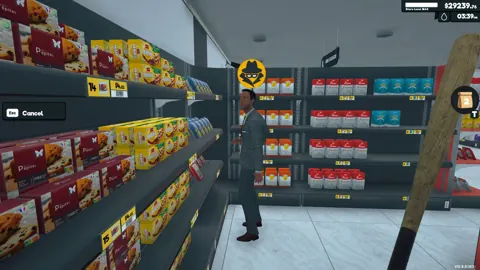 Supermarket Simulator Tips and Tricks for BeginnersSupermarket Simulator tips and tricks to manage stock, set prices, hire staff, use couriers, and grow your store without draining your cash. Start smarter.
Continue exploring

Supermarket Simulator Bakery: DLC Features and Tips
Explore the Supermarket Simulator bakery DLC, including its 15 products, ovens, baker settings, price, and patch fixes. Plan your store's next expansion.
Supermarket Simulator Pricing Guide: Set Better Prices
Supermarket Simulator pricing guide: set shelf prices, use bulk pricing, adjust discounts, and follow market changes to keep your store earning a profit.
Join the community
Official channels for news, updates and player help: