
Supermarket Simulator Staff Guide: Hiring and Boosts
Use this Supermarket Simulator staff guide to manage hiring, employee levels, wages, Boosts, restocker settings, and couriers while keeping costs in check.
Jump to
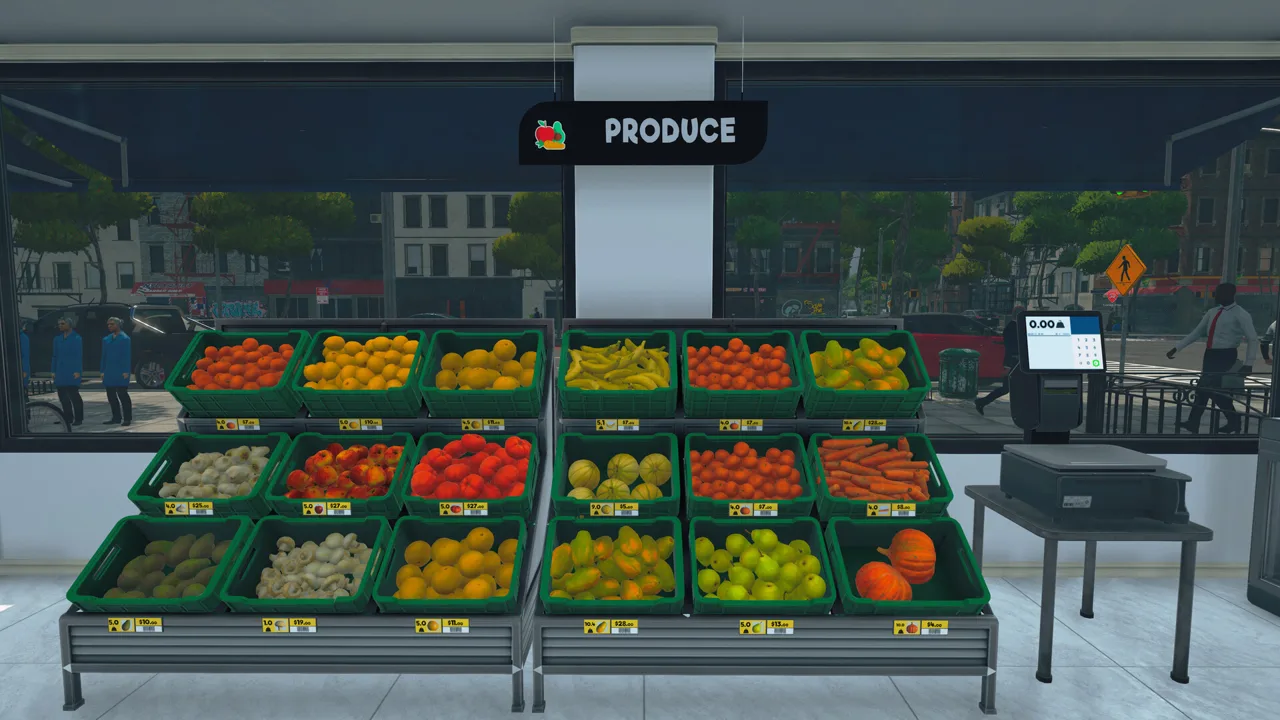
Which Staff Should You Hire First?
A growing store can keep you trapped between the register and empty shelves. This Supermarket Simulator staff guide explains which jobs to automate and how to manage the payroll that comes with them. Hire around the task holding up your store, then adjust employee settings as your workload changes.
Start by identifying what repeatedly pulls you away from everything else:
- Checkout duty: Hire a Cashier for a conventional register, or a Customer Helper to handle assistance at self-checkouts.
- Empty shelves: Hire a Restocker to replenish products while you serve customers or manage stock.
- Cleaning: Add a Janitor when maintaining the store keeps interrupting other work.
- Shoplifting: Pair a Security Guard with detection equipment.
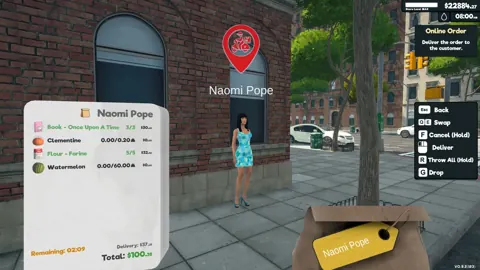
- Online deliveries: Hire an Online Order Courier to deliver orders after you pack them.
Keep enough money available for inventory and recurring expenses before adding another employee. Daily revenue alone is a poor hiring target because product purchases, wages, and other bills still come out of that money.
Cashier or Customer Helper?
A Cashier takes over a staffed register. Hire one when you want to step away from manual checkout while keeping that setup.
A Customer Helper assists with self-checkouts and produce scales. If you are switching to self-checkouts, budget for the machines and the employee together. One helper can support multiple self-checkouts, so you do not need to match every machine with a separate employee.
Add helper coverage when scale assistance and checkout requests compete for attention. Judge the workload by the stations waiting for help rather than expanding payroll simply because another position becomes available.
Official page: Supermarket Simulator (supermarketsimulator.com)
Manage Employee Levels, Wages, and Boosts
The September 28, 2026 update, Patch 1.7.0, introduced Employee Leveling, wage progression, and a redesigned Hiring tab. That tab displays each employee’s level, wage, and Boost status together.
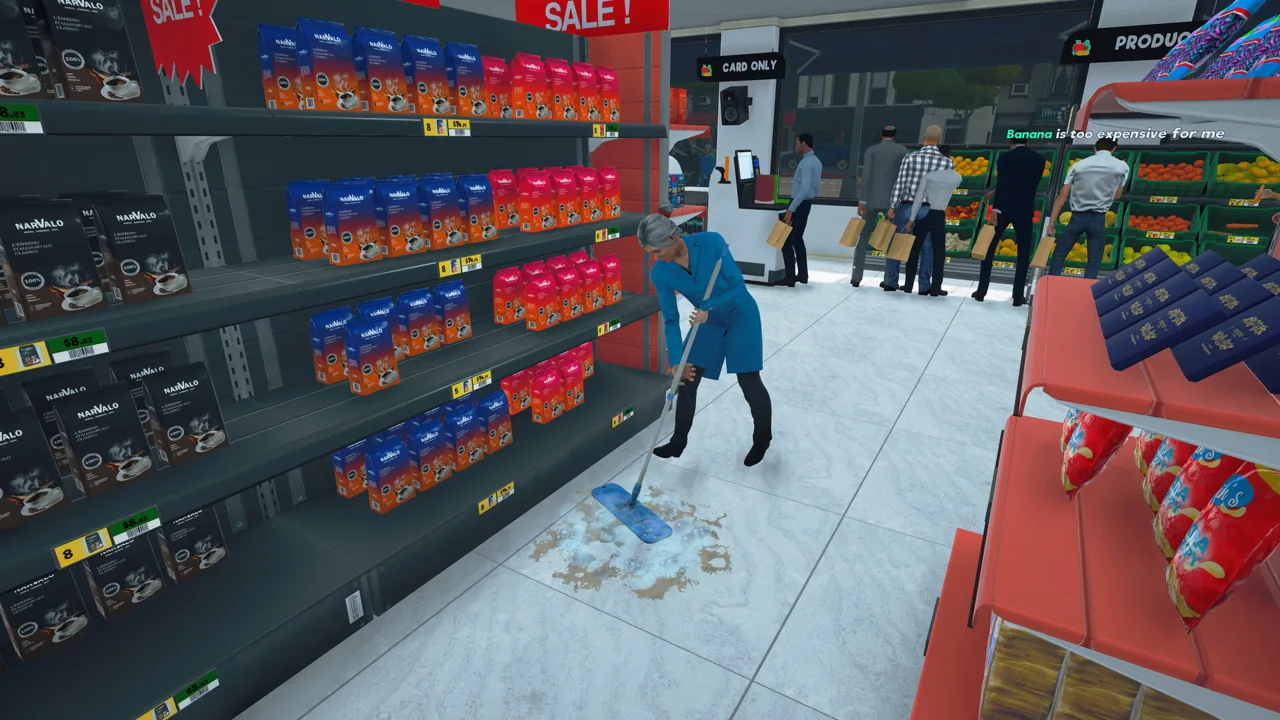 Image: Steam / Nokta Games
Review those values when planning your staffing costs. Employee salaries are automatically paid at the start of the next day, so leave room for payroll before spending your remaining cash on stock or expansion.
You can also assign custom employee names through the Hiring tab. Use recognizable names to keep track of workers when managing a larger team.
How the Current Boost System Works
Since Patch 1.7.0, Boosts stay active at the selected level until you change that level. Each level carries a fixed daily cost, with the actual charge based on how much in-game time the employee spends boosted.
To manage a Boost:
- Open the Hiring tab and select the employee.
- Adjust their Boost level using the Boost bar.
- Review the corresponding wage cost displayed there.
- Revisit the setting when the workload changes.
Increase a Restocker’s Boost when available stock is failing to reach shelves quickly enough. For checkout staff, watch whether service speed is creating a persistent backup.
Reduce the Boost level when the extra speed is no longer useful. Because the setting persists, leaving it active continues to add costs for the time the employee remains boosted.
Configure Restockers Before Expanding the Team
Restockers automate shelf replenishment, but their permissions also control how they handle boxes, storage racks, and vehicle unloading. Open their settings after hiring instead of leaving every option untouched.
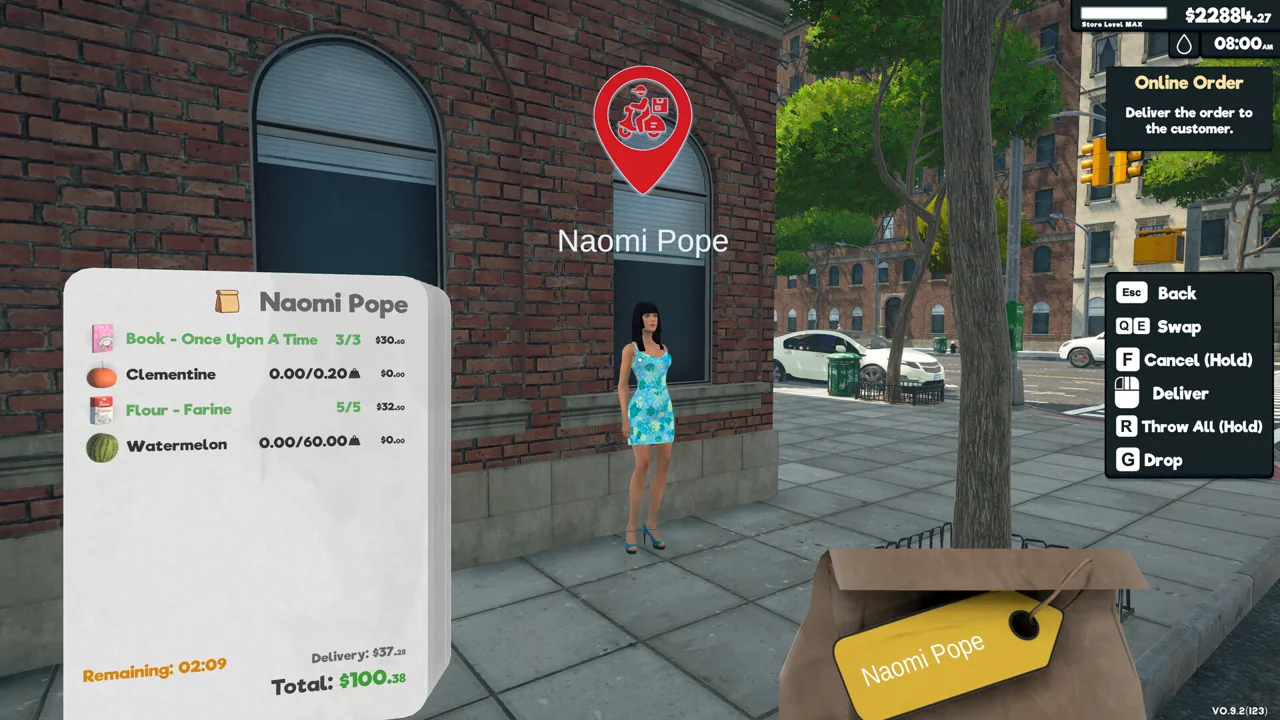 Image: Steam / Nokta Games
| Setting | What It Controls |
|---|---|
| Working | Whether the Restocker is working |
| Use Unlabelled Racks | Whether products can go into rack spaces without labels |
| Pick up box from ground | Whether the employee collects product boxes from the floor |
| Remove Label | Whether labels can be removed from empty rack spaces |
| Drop Empty Box | Whether empty boxes can be dropped on the floor |
| Place products on shelves | Whether the employee replenishes sales-floor displays |
| Restock From Vehicles | Whether the employee unloads products from vehicles |
Turn off Use Unlabelled Racks if you want to reserve storage locations yourself. Then provide labeled rack spaces for incoming products; otherwise, you restrict the employee’s storage options.
Keep Place products on shelves enabled when shelf replenishment is the job you need covered. Check this permission before hiring another worker to solve empty displays.
Vehicle unloading takes priority for Restockers. If shelves need attention while a loaded vehicle is waiting, review Restock From Vehicles before assuming the employee is ignoring the sales floor.
Organize Storage Around the Permissions
Give products deliberate storage locations and keep rack access clear. Avoid moving storage racks while Restockers are actively using them.
Check whether a product is actually available in storage before increasing staff or Boost spending. A faster worker cannot replenish inventory you have run out of.
Start with one Restocker to automate the process, then watch whether replenishment keeps pace with sales. Add another when the remaining work justifies another wage.
Set Up Security Guards and Janitors
 Image: Steam / Nokta Games
Give Security Guards Detection Equipment
Security Guards respond to discovered shoplifters and return stolen products to shelves. They work with security cameras, an antenna, or both.
The antenna detects shoplifters as they leave. Cameras identify them when they steal, allowing guards to respond earlier. Place the detection equipment alongside your staffing investment rather than expecting a guard alone to handle discovery.
If you prefer managing the supermarket without theft, shoplifters can be disabled in the settings. Make that choice before committing money to security staff and equipment.
Use Janitors to Take Cleaning Off Your Schedule
Janitors handle cleaning as the store gets busier. Hire one when cleaning repeatedly draws you away from checkout, stock management, or orders.
Patch 1.7.0 added Work Order toggles for both the Janitor and Customer Helper. Review those controls when setting up their duties, and use the Hiring tab’s Information pop-ups for explanations of the available options.
Check the assigned work before adding another employee to cover a task your existing staff should already be handling.
Use the Online Order Courier for Deliveries
The October 27, 2026 update, Patch 1.7.3, added the Online Order Courier to the Hiring tab. At higher store levels, you can employ up to two couriers to handle multiple shipments at the same time.
The division of work is straightforward:
- Receive an online order.
- Collect and pack the requested products.
- Hand the packed order to the courier.
- Let the courier complete the delivery.
Packing remains your responsibility. Use the time freed from traveling to prepare another order or handle work inside the supermarket.
Add the second courier when simultaneous shipments are creating a delivery backlog. If gathering and packing products is taking most of your time, focus on that part of the process before expanding delivery capacity.
Fix Stuck Employees Through the Hiring Tab
Patch 1.7.0 added an employee reset that returns workers to their idle positions. Patch 1.7.3 also addressed Restockers getting stuck while moving at high levels or Boost speeds.
When an employee stops making progress, work through these checks:
- Review their work settings. Make sure the relevant task is enabled.
- Check stock and storage. For Restockers, confirm products are available and suitable rack spaces exist under their current permissions.
- Stop rearranging active work areas. Let Restockers finish before moving the racks they are using.
- Use the employee reset. Return the worker to their idle position through the Hiring tab.
- Toggle Working off and on for a stuck Restocker. This can make them drop the box they are holding.
- Restart the game if the problem persists.
Fix task permissions and movement problems before raising a Boost level or hiring a replacement. Extra speed and extra payroll will not resolve a worker being unable to complete the assigned job.
Continue with
 Supermarket Simulator How to Catch Shoplifters GuideSupermarket Simulator how to catch shoplifters: learn to spot thieves, use the bat, set up cameras and alarms, and hire guards to recover the stolen stock.
Continue exploring
Supermarket Simulator Pricing Guide: Set Better Prices
Supermarket Simulator pricing guide: set shelf prices, use bulk pricing, adjust discounts, and follow market changes to keep your store earning a profit.

Supermarket Simulator Beginner Guide: Start Strong
Use this Supermarket Simulator beginner guide to manage stock, set prices, hire staff, and expand without draining the cash you need to keep shelves full.
Join the community
Official channels for news, updates and player help: