
Supermarket Simulator Pricing Guide: Set Better Prices
Supermarket Simulator pricing guide: set shelf prices, use bulk pricing, adjust discounts, and follow market changes to keep your store earning a profit.
Jump to

What Prices Should You Set?
Start near the current market price, with enough room above your unit cost to earn a profit. This Supermarket Simulator pricing guide walks you through setting prices, adjusting discounts, and keeping up with market changes. Getting those decisions right helps you turn stocked shelves into cash for your next order and store expansion.
For your opening prices, try a few cents below market value, provided that still leaves a worthwhile margin above cost. Once you have a baseline, experiment with small increases or discounts and compare the results over several days.
Avoid applying a fixed markup to everything without checking the market. Your purchase cost tells you how much you spent; the market price gives you a benchmark for what to charge. A price comfortably above cost can still be expensive enough to put customers off.
Official page: Supermarket Simulator (supermarketsimulator.com)
How to Set Prices on Shelves and the Computer
You can change prices directly on a shelf or manage your licensed products through the store computer.

To price an item on the shelf:
- Order the product and place it on the appropriate shelf, fridge, or freezer.
- Left-click its shelf price tag.
- Compare the displayed unit cost and current market price.
- Enter your selling price in the price field.
- Select Okay to apply it.
The shelf menu also includes a discount option. Check the resulting selling price whenever you use it so you know how much you will actually earn per unit.
For a larger inventory, open Pricing on the computer—the app with the dollar sign icon. It lists the products you have licenses for, along with cost, market price, recent market movements, selling price, and discount controls.
Review newly unlocked products before opening. An item without a manually set price defaults to its purchase cost, leaving no gross profit on that sale. Recovering the product cost still leaves your other expenses to cover.
Use Bulk Pricing and Percentage Presets
Patch 1.6.0 introduced Bulk Pricing through the Pricing App, letting you select multiple products and adjust their prices or discounts together. It also added percentage preset buttons based on the current market price.

Use these tools to reduce repetitive editing:
- Select products you want to adjust together.
- Apply your chosen price or discount settings.
- Review the resulting prices against each product’s cost.
- Adjust individual products where the remaining margin is too small.
Keep market-based percentages separate from markup on purchase cost. The preset buttons use the current market price as their reference, so they do not guarantee the same profit margin across your inventory.
If the pricing screen feels cramped, use Readability Mode. You can enable it in Settings or use the Layout button on the Market Computer UI. Individual panels can use different layouts, letting you enlarge the information you need most.
Review Market Changes Before Opening
Make pricing part of your morning routine. The Pricing App shows when a product’s market price last changed and whether it moved up or down.
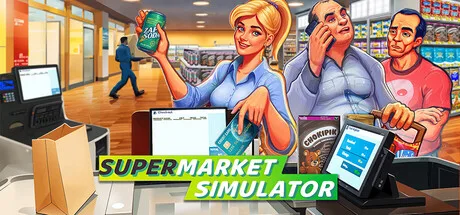 Image: Steam / Nokta Games
A red indicator marks a recent decrease; a green indicator marks a recent increase. Use those indicators to find products that deserve attention.
When market value falls, compare your existing shelf price with the new benchmark. Lower an excessive price before customers start rejecting the product. When market value rises, consider increasing your price to preserve your position relative to the market.
Neither indicator replaces checking your current settings. A market increase gives you room to review a price; it does not require you to raise it. Likewise, an already discounted product may still be reasonably priced after a market decrease.
Test Discounts Without Giving Away Your Margin
Discounts reduce what customers pay, but a larger discount also cuts the profit on each unit. Evaluate the final selling price alongside the number of units sold.
Start with a 5% discount from market price if your costs leave enough room. Compare several days of results before trying 10% or 15%. Keep your assortment and store setup as consistent as practical during the comparison, and note market changes or stock shortages that could affect sales.
Watch more than daily revenue. Compare product costs and operating expenses, too: selling more items does not automatically leave more money available afterward.
Skip the doubled-price, 50%-off trick. Doubling a price and then halving it returns the same selling price mathematically. Use the discount field to control an actual reduction rather than chasing a bigger sale label.
Protect Profit Through Purchasing and Stock Control
Your buying decisions determine how much flexibility you have at the shelf. Compare online purchasing costs, delivery fees, and local market deals before replenishing inventory.
Buy at lower prices when the savings justify the purchase, but keep enough cash available for other products and expenses. Extra boxes tie up money until their contents sell.
Before using a loan to cover a cash shortage, inspect your pricing and inventory:
- Check for products still selling at their default cost.
- Review discounts that leave little profit per unit.
- Reduce orders for items accumulating in storage.
- Replenish products that are selling instead of repeatedly buying slow stock.
When a product’s margin becomes uncomfortable, compare purchasing options before raising its shelf price. A lower acquisition cost gives you more room to earn money while staying close to the market.
Continue with
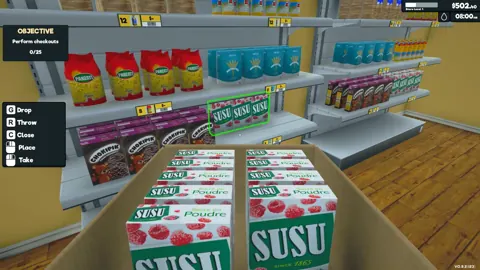 Supermarket Simulator How To Change Price: Pricing GuideSupermarket Simulator how to change price: edit shelf tags, use the Pricing App and bulk tools, and adjust prices to protect profit as market values shift.
Continue exploring

Supermarket Simulator Beginner Guide: Start Strong
Use this Supermarket Simulator beginner guide to manage stock, set prices, hire staff, and expand without draining the cash you need to keep shelves full.
Supermarket Simulator Tips and Tricks for Beginners
Supermarket Simulator tips and tricks to manage stock, set prices, hire staff, use couriers, and grow your store without draining your cash. Start smarter.
Join the community
Official channels for news, updates and player help: