
Supermarket Simulator Tips and Tricks for Beginners
Supermarket Simulator tips and tricks to manage stock, set prices, hire staff, use couriers, and grow your store without draining your cash. Start smarter.
Jump to
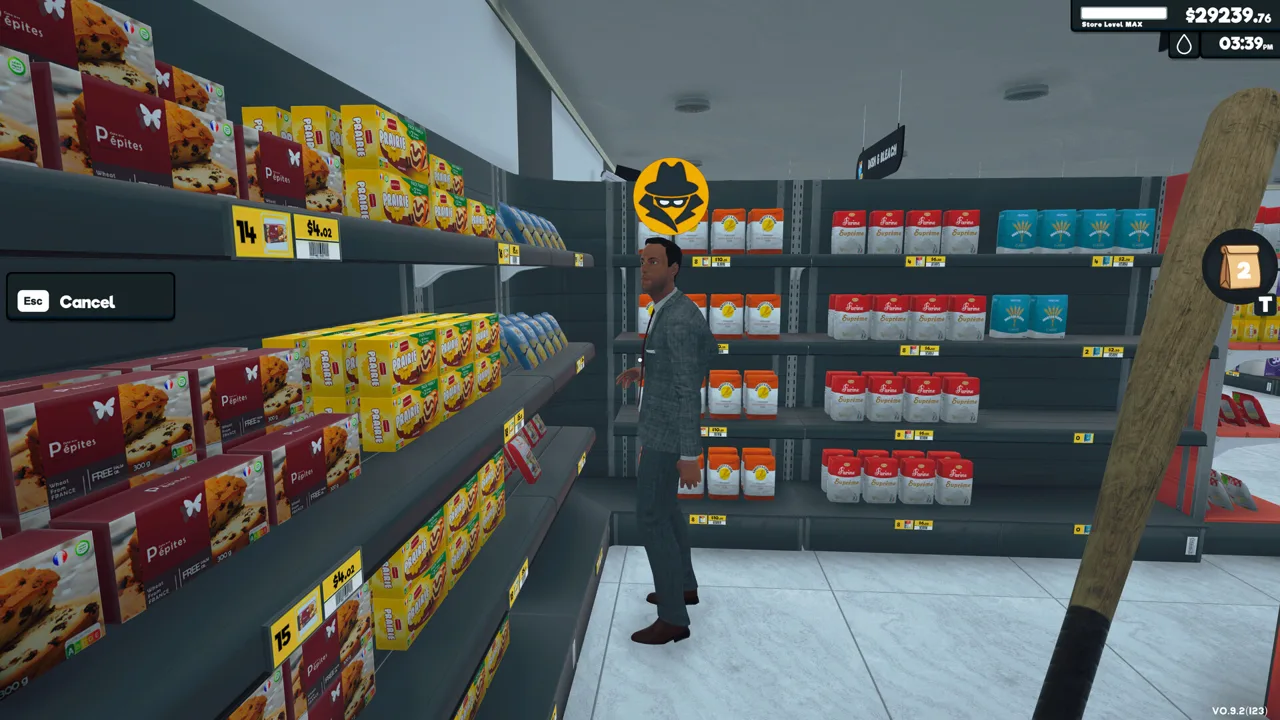
Empty shelves and a crowded checkout can turn a promising day into a scramble. These Supermarket Simulator tips and tricks help you keep products moving while protecting the cash you need for tomorrow. Build a reliable stocking routine before taking on more products, employees, and deliveries.
Prepare Your Store Before Opening
1. Use the pre-opening pause
The clock does not advance until you open the store at the start of the day. Use that preparation window to order products, fill displays, review prices, and rearrange furniture.
Walk through the sales floor before opening. Look for empty product slots, unfinished stocking jobs, and boxes you still need to organize. Finish those tasks before customers compete for your attention.
2. Learn the box controls early
On keyboard and mouse, hold the left mouse button to stock products continuously instead of clicking for every item. Press C to close a box before setting it aside.
To remove a misplaced product from a shelf, hold a compatible box and right-click the product. Use a box of the same size that is either empty or already contains that product, with room remaining.
Inspect boxes before throwing them away. A nearly empty carton can still contain merchandise, and discarding it means losing stock you paid for.
Official page: Supermarket Simulator (supermarketsimulator.com)
Keep Inventory Organized and Available
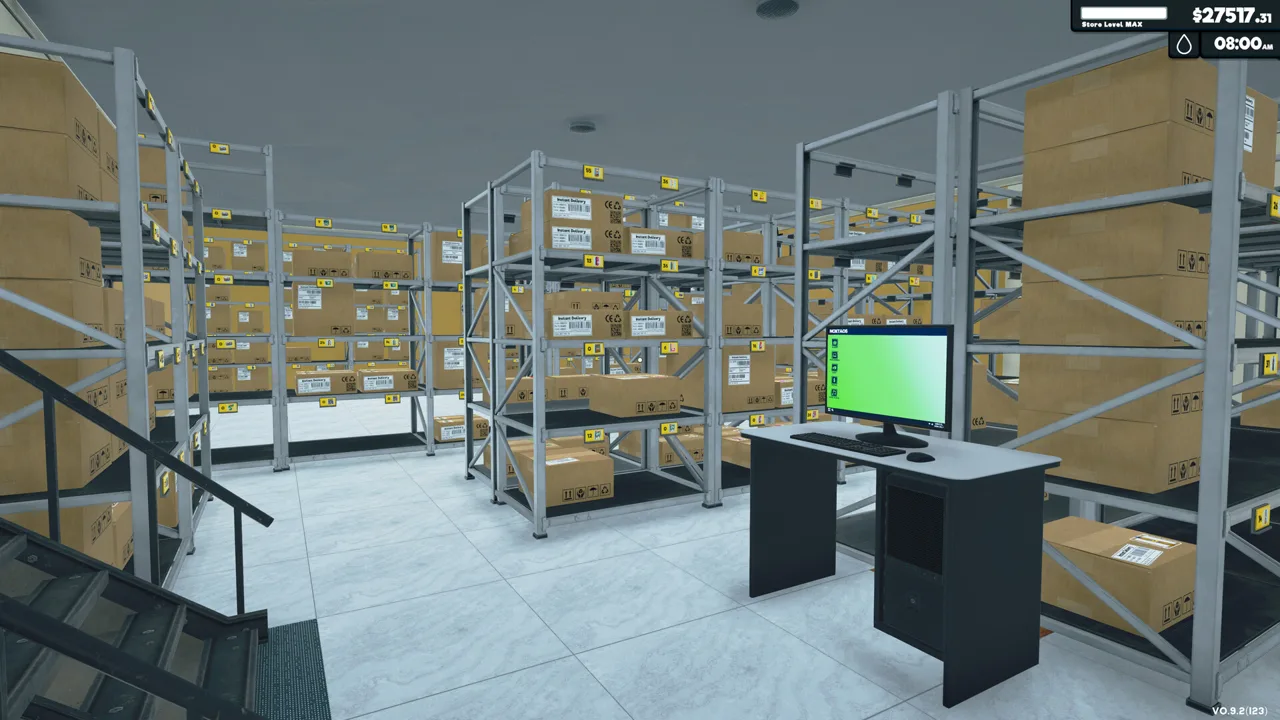 Image: Steam / Nokta Games
3. Count products, not just boxes
A stack of cartons can look reassuring while holding surprisingly few units. Package quantities differ: the stocking example for toilet paper contains four packs per box, while other products come in much larger quantities.
Plan storage around the number of individual products available. Give items with small box quantities enough rack space to maintain a useful reserve.
The tablet’s shelf count was changed in Patch 1.5.0 to display products on shelves rather than products inside boxes. Keep that distinction in mind when comparing shelf availability with your backroom inventory.
4. Give frequently emptied products more display space
Watch which products need refilling repeatedly during the day. Assign those items additional shelf space before adding more space to products that barely move.
Keep reserve stock organized on storage racks so restockers can retrieve it. Buying replacement inventory only solves half the problem; those products still need to reach the sales floor.
Avoid filling every available storage position with the same discounted item. Leave room for the rest of your assortment.
5. Put the computer near your inventory work
Once you spend much of the day managing storage, move the Store PC closer to the racks. Compare what is missing, place your order, and collect the arriving goods without repeatedly crossing the sales floor.
Arrange storage consistently. Keeping each product in a predictable place makes it easier to spot shortages and put deliveries away.
Set Prices Without Losing Control of Cash

6. Review prices when purchasing costs change
Product purchasing prices fluctuate. Revisit your selling prices as the market changes, balancing the amount earned per item against customer reactions.
Start with the displayed market price as your reference point. Adjust deliberately rather than applying an aggressive markup across the entire store.
Separate revenue from profit when judging a successful day. Money collected at checkout still has to cover replacement inventory, employee costs, and other expenses.
7. Buy discounts within your storage budget
Purchase discounted stock you expect to sell, provided you have room to store it and enough cash left for other needs.
Before placing a large order, ask:
- Is this product already sitting in storage?
- Will the shipment fit on the racks?
- Can you still afford replacements for other products?
- Are employee costs or payments coming due?
Visit local markets to compare deals with computer orders and consider the delivery fees you can avoid. Make those trips when the store has enough coverage for you to step away.
8. Read the full loan commitment
Before taking a loan, inspect its repayment amount and daily payment. Borrow for a specific purchase you can support with ongoing income.
Keep money available for inventory after making that purchase. An expansion that leaves you unable to refill shelves gives you more space without the merchandise to use it.
Check the payment screens rather than assuming every obligation follows the same automatic payment behavior. Review upcoming bills and loan payments before committing spare cash to another upgrade.
Make Checkout Easier to Manage

9. Use payment controls carefully
When handling cash, left-click a denomination to take it from the register. If you select the wrong amount, right-click that denomination inside the register to return it.
For card payments, use the number pad to enter the amount. Check the total before completing the transaction.
Learn these controls while handling your own checkout so correcting a mistake becomes routine when the line gets busy.
10. Keep a checkout available for your own use
Press E to open or close a checkout counter. Keep a spare counter closed when you are busy elsewhere, then open it when you are ready to serve customers.
Help at the register when checkout becomes the task holding up the store. Close your counter again before returning to a longer stocking or management job.
Avoid building your routine around older advice that waiting customers can always be ignored. Manage the line alongside shelf availability so you can respond to whichever task needs attention.
Manage Employees Through the Hiring Tab
11. Budget for leveling and persistent Boosts
The staffing system in version 1.7.3 includes employee leveling, wage progression, and persistent Boost settings. Review each employee’s level, wage, and Boost status in the Hiring tab before increasing your labor spending.
| Update | Staffing changes |
|---|---|
| 1.7.0 — September 28, 2026 | Employee leveling, wage progression, custom names, and reworked Boost management in the Hiring tab |
| 1.7.3 — October 27, 2026 | Online Order Courier added; higher store levels allow up to two couriers |
A selected Boost level stays active until you change it. Each level has a fixed daily cost, but the charge reflects the amount of in-game time the employee actually spends boosted.
Raise the Boost level when you need more capacity, then lower it when that need passes. Check the displayed cost instead of treating Boosts as short, one-time purchases.
12. Check work settings before hiring again
Use the Work Order toggles for the Customer Helper and Janitor to review their assigned work. Give employees custom names if that helps you distinguish them in the Hiring tab.
If an employee becomes stuck, use the reset option to return them to their idle position. Inspect nearby furniture and available stock before assuming another hire will solve the problem.
For restockers, check both the storage supply and the destination shelves. Faster employees cannot refill a product you have not purchased.
Expand Around Products and Working Space
13. Prepare for a license before buying it
Before purchasing a product license, plan where its products will go. Account for the initial inventory, display furniture, and storage space together.
Introduce one license at a time so you can stock its products and see how the expanded assortment fits your routine. Avoid unlocking several groups of merchandise while their intended shelves remain empty.
Check current requirements in the management interface before spending. Keep the full setup cost in view rather than budgeting only for the license itself.
14. Use the grid to organize furniture
The Snap / Grid System, introduced in Patch 1.5.0, lets you align shelves, racks, and other furniture during placement. Adjust the grid size to suit the layout and use snapping to position neighboring pieces.
Leave usable routes between storage, displays, and checkout. Walk those routes yourself after rearranging the store.
If furniture overlaps in an older save after the grid update, reposition the affected pieces. Some furniture dimensions changed to fit the system, so an existing arrangement can need adjustment.
Expand when you have a clear use for the extra area. Decide which displays or workspaces will occupy it before paying for more floor space.
Hand Off Deliveries Without Neglecting Packing
15. Use the Online Order Courier
In version 1.7.3, you can pack an online order and hand the package to an Online Order Courier for delivery. Packing remains your responsibility.
Hire through the Hiring tab when the courier becomes available to your store. At higher store levels, you can employ up to two couriers, allowing multiple shipments to move at the same time.
Organize the products and packages you need before starting the handoff. Use the time freed from personal deliveries to cover checkout, refill displays, or prepare the next order.
Make Time for Maintenance, Security, and Co-op
16. Include cleaning and theft protection in your routine
Clean floors, remove trash, and polish windows alongside the rest of your store work. Use the Janitor’s Work Order settings to manage cleaning duties when you have that employee.
Protect the store from shoplifters with the available security tools, including cameras, alarm sensors, and security guards. Review those options as your operation grows and your attention becomes divided between more tasks.
Keep cleaning and security expenses in the same budget review as staffing and inventory.
17. Divide responsibilities when playing together
In co-op, assign jobs before opening. Have one person cover checkout while another handles inventory, with deliveries and cleaning assigned around those responsibilities.
Tell the group when you change prices, order stock, or rearrange furniture. Agree on who handles purchasing so everyone can work from the same inventory plan.
Before someone leaves to collect goods or make a delivery, hand their store duties to another player. Keep a register covered and make sure someone is watching the shelves while the delivery run is underway.
Continue with
 Supermarket Simulator Beginner Guide: Start StrongUse this Supermarket Simulator beginner guide to manage stock, set prices, hire staff, and expand without draining the cash you need to keep shelves full.
Continue exploring

Supermarket Simulator Bakery: DLC Features and Tips
Explore the Supermarket Simulator bakery DLC, including its 15 products, ovens, baker settings, price, and patch fixes. Plan your store's next expansion.
Supermarket Simulator Pricing Guide: Set Better Prices
Supermarket Simulator pricing guide: set shelf prices, use bulk pricing, adjust discounts, and follow market changes to keep your store earning a profit.
Join the community
Official channels for news, updates and player help: