
Supermarket Simulator How To Change Price: Pricing Guide
Supermarket Simulator how to change price: edit shelf tags, use the Pricing App and bulk tools, and adjust prices to protect profit as market values shift.
Jump to
How to Change a Product’s Price
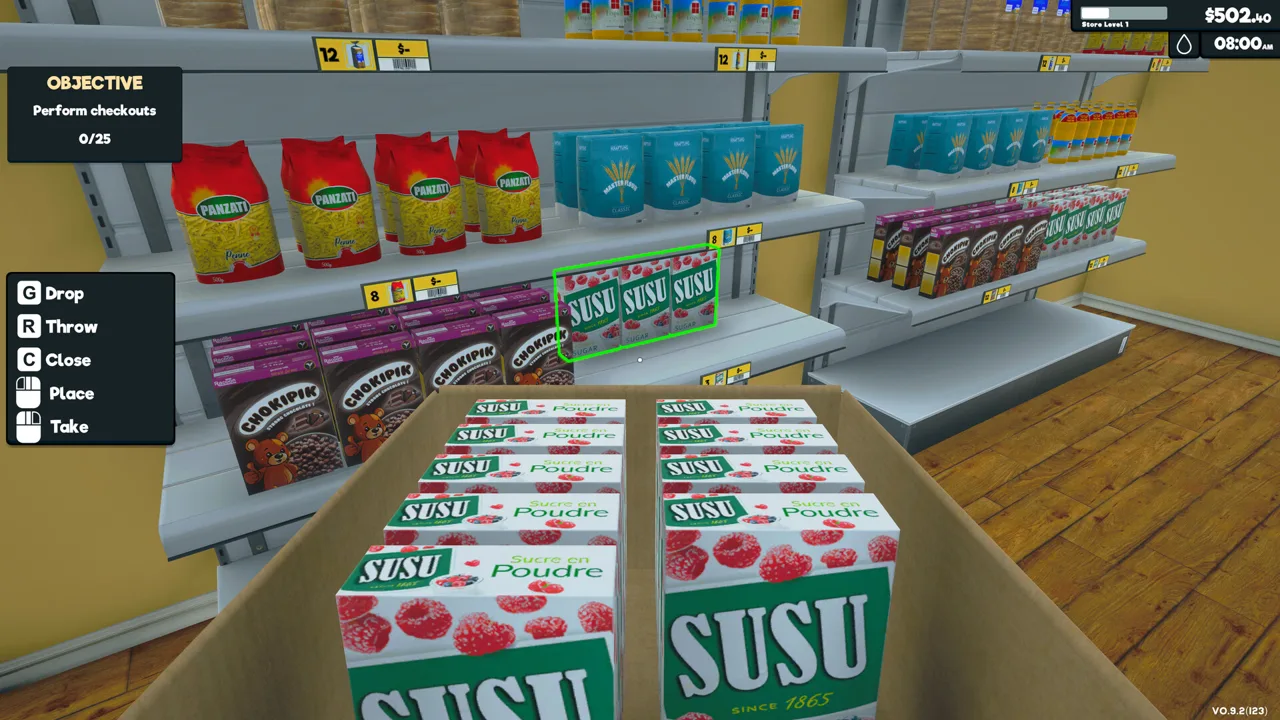
A full shelf earns little if you leave its products priced at cost. In Supermarket Simulator, how to change price settings is straightforward: left-click a stocked shelf’s price tag, enter your selling price, and select Okay. Setting that price deliberately helps you earn money on each sale while keeping customers willing to buy.
To change a price directly on the shelf:
- Place the product on a shelf so its price tag appears.
- Left-click the price tag on the shelf edge.
- Select the custom price text box in the pop-up.
- Enter the selling price you want.
- Select Okay to apply it.
The pop-up also shows the product’s average cost, current market price, and a discount option. Compare those figures before confirming your change.
Use shelf tags when you’re stocking newly licensed products or correcting an individual item. For a store-wide pricing review, move to the computer.
Official page: Supermarket Simulator (supermarketsimulator.com)
Change Prices Through the Computer’s Pricing App
Open the store computer and select Pricing, marked with a dollar sign icon. This displays the products you have licenses for, bringing their pricing information together without requiring a trip through every aisle.
 Image: Steam / Nokta Games
For each product, you can review:
- Its cost per unit.
- The current market price.
- When the market price last changed.
- Whether that market price increased or decreased.
- Your selling price and discount settings.
Find the product you want to adjust and edit its Price field. Review the discount setting alongside it so you know what you’re charging.
The colored indicators help you spot market movements: red means the market price decreased; green means it increased. Use them to identify products worth reviewing, rather than automatically changing every marked item. A market increase gives you room to reconsider your price, but it doesn’t require you to raise it.
Use Bulk Pricing and Percentage Presets
Patch 1.6.0 added Bulk Pricing and percentage preset buttons, making it easier to manage a larger product range.
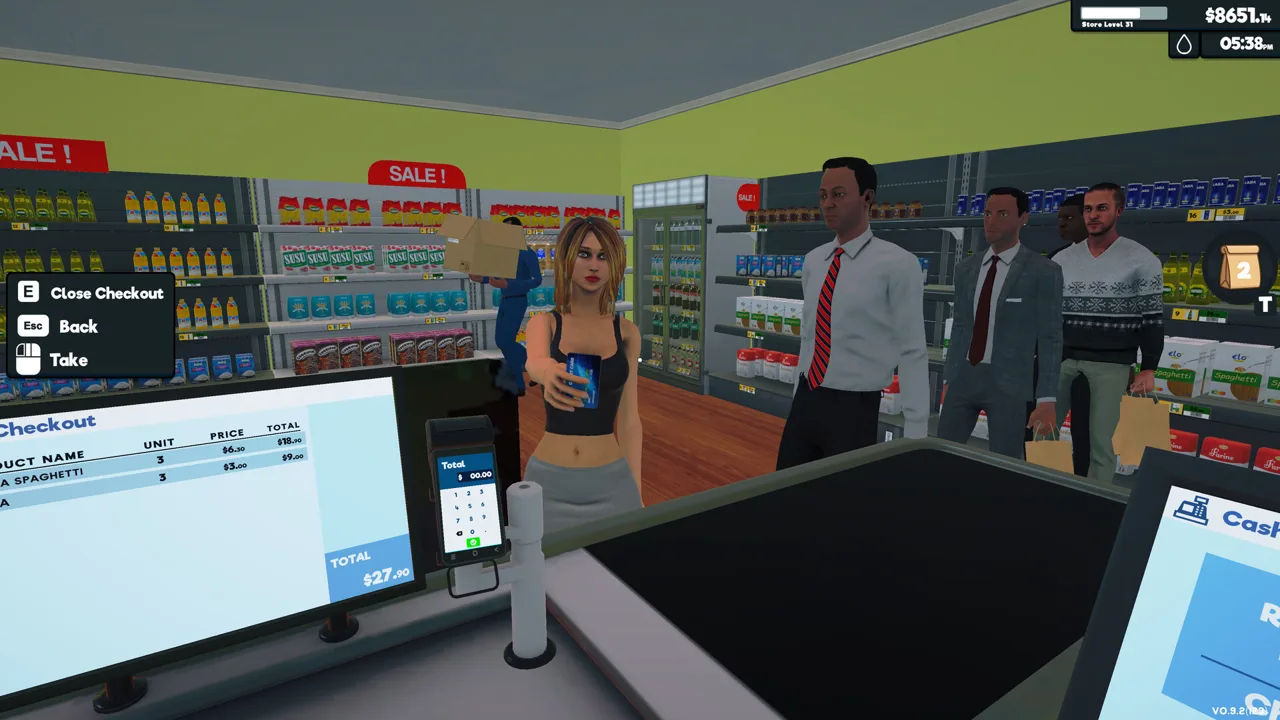 Image: Steam / Nokta Games
| Feature | What it does |
|---|---|
| Bulk Pricing | Lets you select multiple products and set prices or discounts through the Pricing App. |
| Pricing preset buttons | Provide percentage adjustments based on the current market price for product pricing and discounts. |
| Readability Mode | Offers larger fonts and images, with layouts selectable individually for each panel. |
To adjust several products, open the Pricing App, access Bulk Pricing, and select the products you want to change. Set their prices or discounts through that menu.
Use the percentage presets when you want to make adjustments relative to market value. Check product costs before applying the same pricing approach across your selection: different products leave you different amounts of room between purchase cost and selling price.
If the computer interface feels cramped, enable Readability Mode in Settings or use the Layout button on the Market Computer UI.
Choose a Selling Price That Leaves a Margin
The two figures to compare are unit cost and market price. Unit cost tells you what an individual product costs you, even when you ordered it as part of a box. Market price gives you a benchmark for setting your retail price.
 Image: Steam / Nokta Games
Selling above cost creates a gross profit on the item. That money still needs to contribute toward your store’s expenses, so merely matching the purchase cost won’t sustain the business.
Start near market price while leaving a margin above cost. If you want to price slightly below market value, check that the resulting sale still earns enough to justify stocking the product.
Charging too far above market price can lead to complaints and refused purchases. Test increases cautiously and watch customer reactions before extending the same approach to more products. There’s no need to force every item into a fixed markup.
Discounts deserve the same attention. Before reducing a price, compare the discounted selling amount with unit cost so you don’t erase the margin you intended to keep.
Review Market Changes Before Opening
Make pricing part of your morning routine, before customers enter. The Pricing App lets you review changed market values alongside your existing prices.
Prioritize these checks:
- Newly licensed products: Set their prices deliberately instead of leaving new stock at its default purchase price.
- Market decreases: Check whether your existing price has become too expensive relative to the new market value.
- Market increases: Consider whether to raise your price while watching the effect on customer satisfaction.
- Discounted products: Recheck the selling price against cost before continuing the discount.
Avoid treating a red indicator as an automatic instruction to lower a price. Compare the actual figures first; a product already priced below the new market value presents a different decision from one now sitting well above it.
When inventory moves slowly, try a lower selling price while preserving a margin. If cash remains tight, review purchasing volume too—money tied up in unsold boxes can limit your next restock even when individual sales are profitable.
Continue with
 Supermarket Simulator Pricing Guide: Set Better PricesSupermarket Simulator pricing guide: set shelf prices, use bulk pricing, adjust discounts, and follow market changes to keep your store earning a profit.
Continue exploring
Supermarket Simulator Mods: 8 Useful Picks Explained
Explore Supermarket Simulator mods for stock tracking, automatic pricing, faster checkout, and store makeovers, with tips for choosing your next download.
Supermarket Simulator Bakery: DLC Features and Tips
Explore the Supermarket Simulator bakery DLC, including its 15 products, ovens, baker settings, price, and patch fixes. Plan your store's next expansion.
Join the community
Official channels for news, updates and player help: